Invoicing, Tax and Stripe
- Introduction of Partial Invoice
- Steps to process a Partial Shipped / Partial Invoiced Order
- Stripe configs
- Future Ship Invoicing
- Bug with Stripe configs `Save customer payment method`
- Use Magento Out-Of-Box tax
Introduction of Partial Invoice
Partial invoice: There are situations when Frans Team only ship a few quote addresses of a MS order.
For example, MS order has 3 Quote Addresses; but only 2 addresses are shipped. The order is now partially shipped.
Steps to process a Partial Shipped / Partial Invoiced Order
Steps to make a partial shipping/Partial invoiced order.
Step 1: Create a multiship order.
MS order can be created via backend other frontend. Make sure to have more than 1 Shipping Addresses. For example:
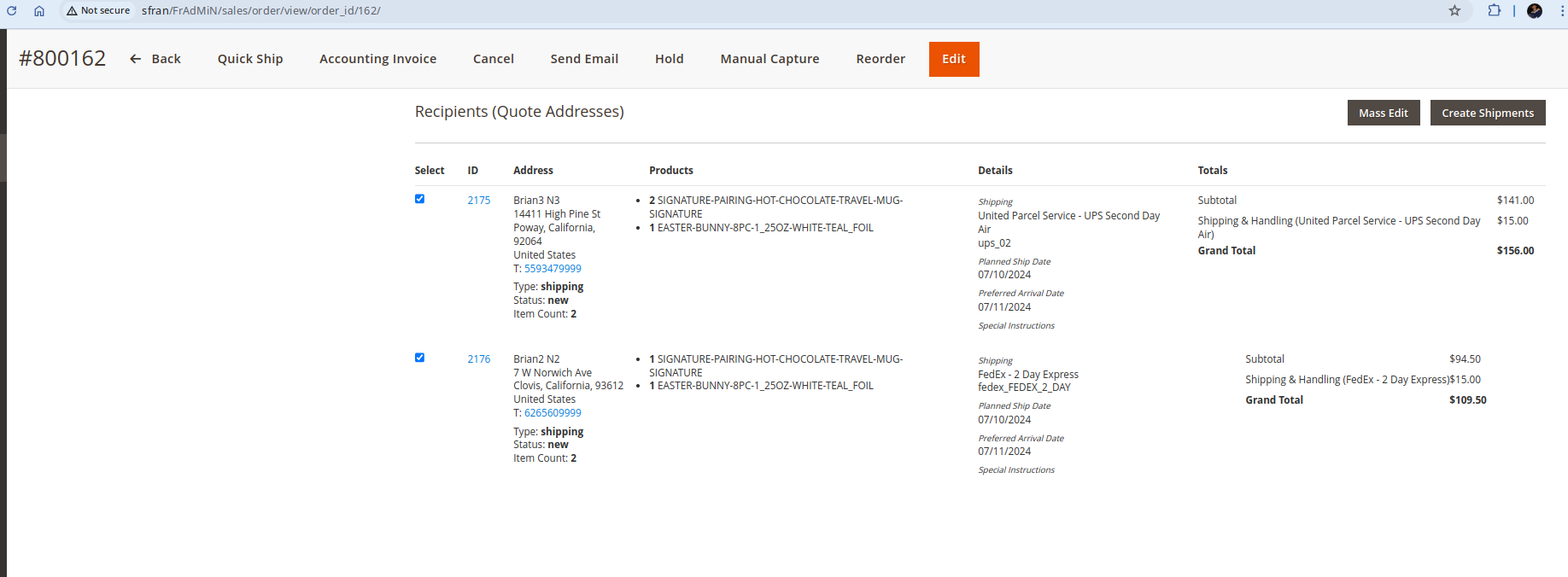
Step 2: Ship to one of the addresses:
Click the QA
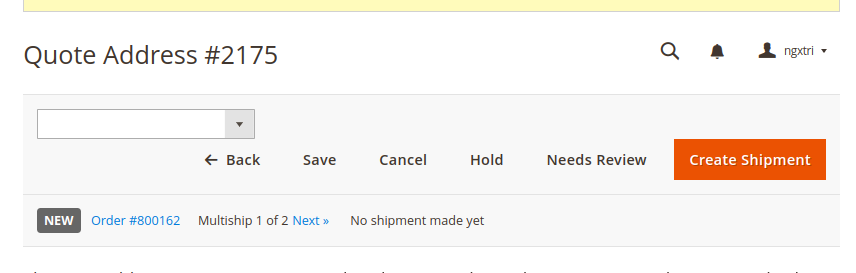
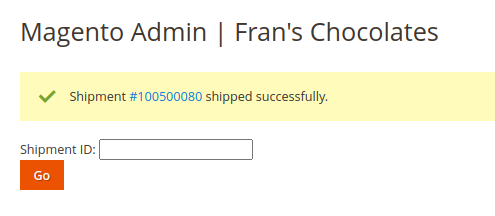
Then click `Create Shipment`. Confirm that shipment was created successfully:
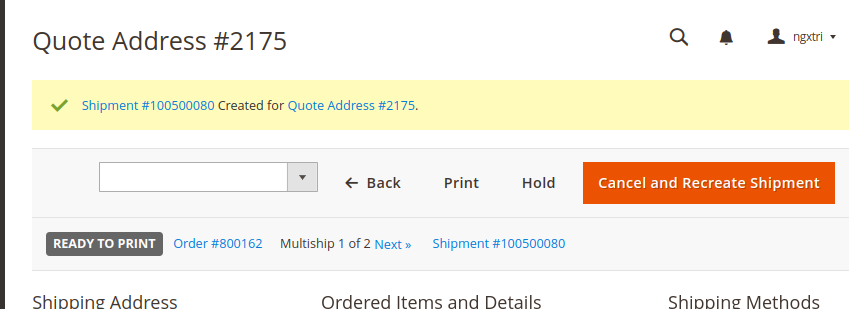
Go into that shipment:
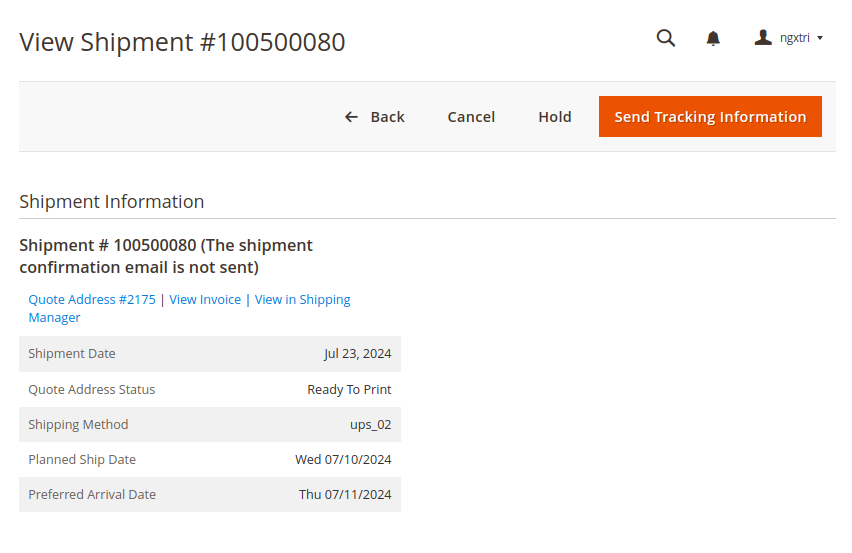
Notice the Quote Address status is Then click `View in Shipping Manager`
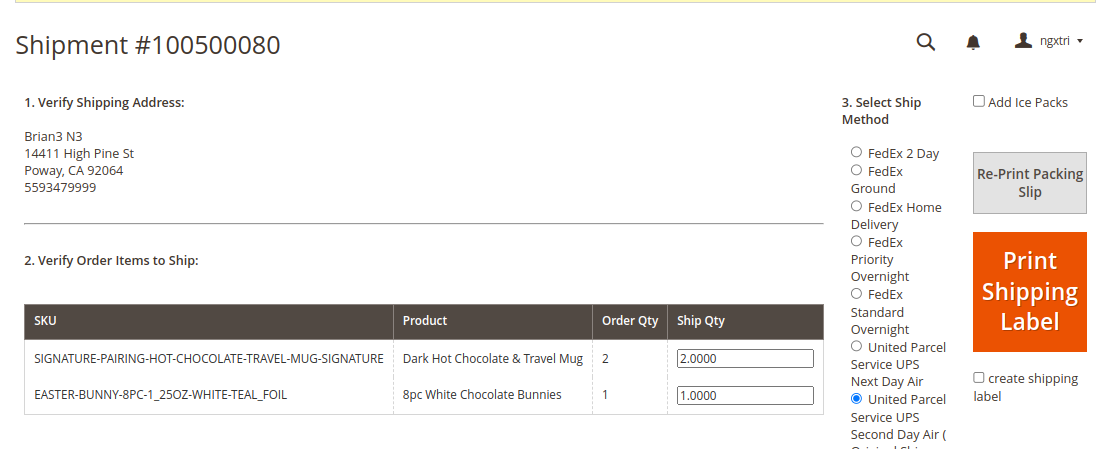
When shipment was first created; it's in `New` status; it's not actually shipped yet. Click `Print Shipping Label` to actually ship it
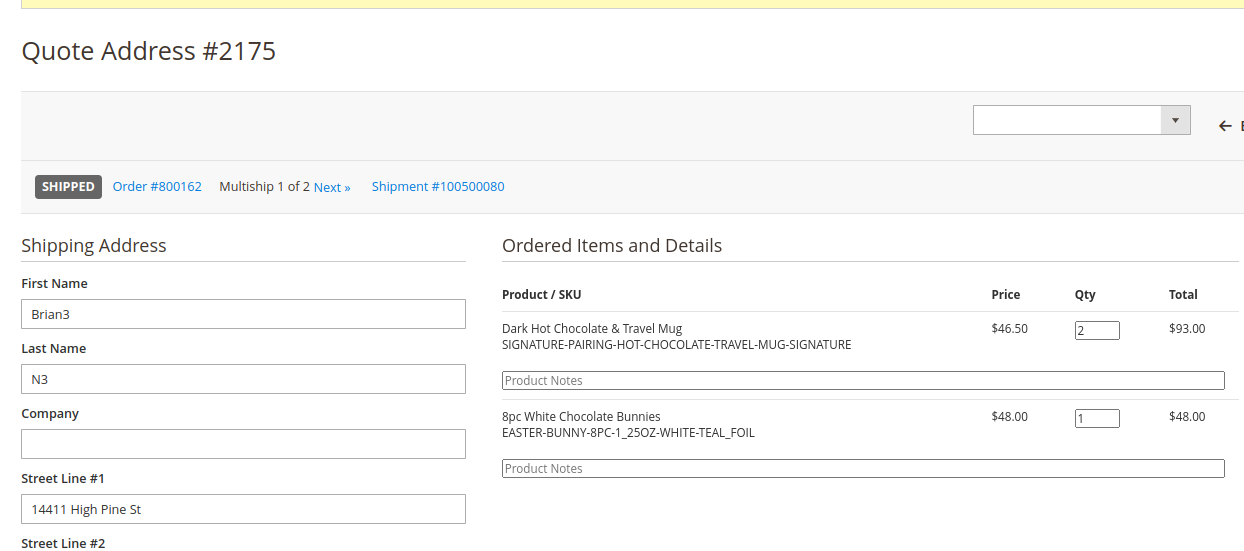
Go back to the Quote Address, confirm that its status is now Shipped:
Step 3: Execute partial-email-and-invoice:
Go to the order. Then click button `Invoice & Capture`
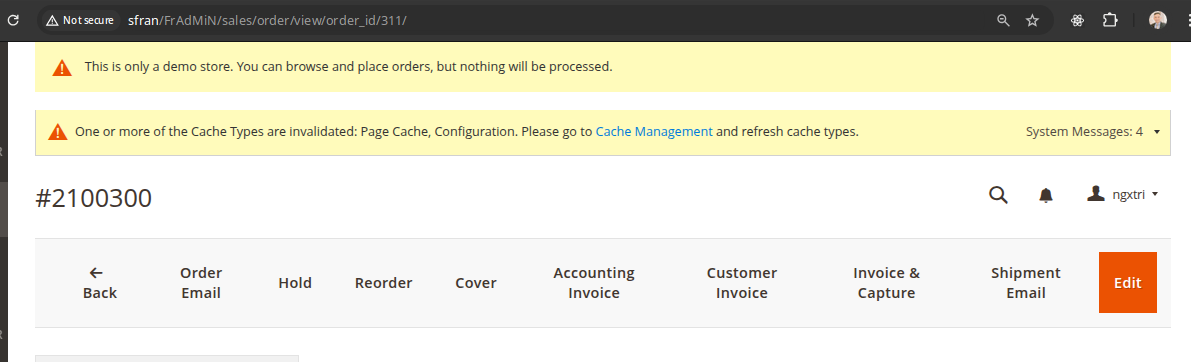
Invoice & Capture will look for shipments that have been shipped but not emailed; and not invoiced yet.
Invoice & Capture email those shipments; then create invoice for those shipments. For email, there is no restrictions. All shipments will be emailed. But for invoicing, there is an additional check at ShipmentEmailSender.php, line 122, if( !$order->isReadyToInvoice()) continue. This means that if order is not ready to invoice; order will not be invoiced; even though emails are sent. In the future we might want to separate email vs invoice to make this more understandable.
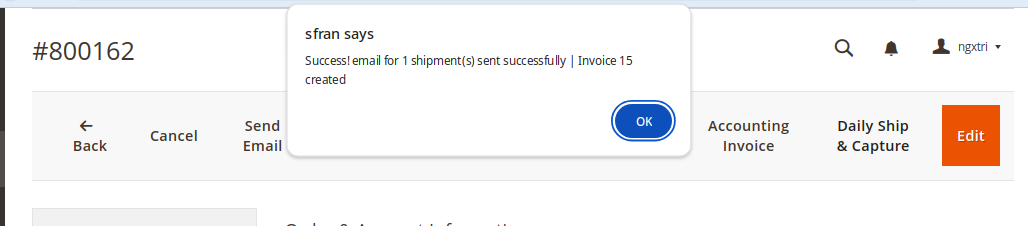
If everything was successful; success message is shown:
To verify, click `Invoices` tab:
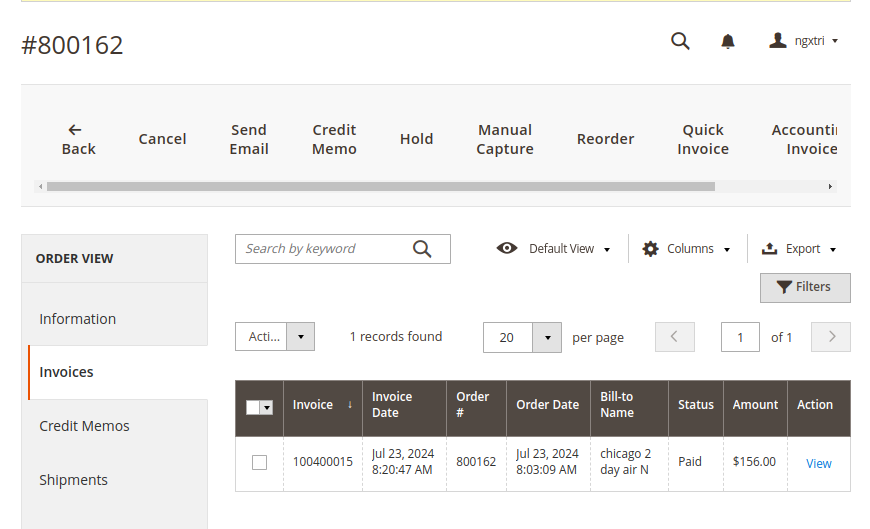
Invoice 1000400015 is the invoice created by `Daily Ship & Capture`.
Also, go to Admin -> Reports -> Multi-ship Email Log
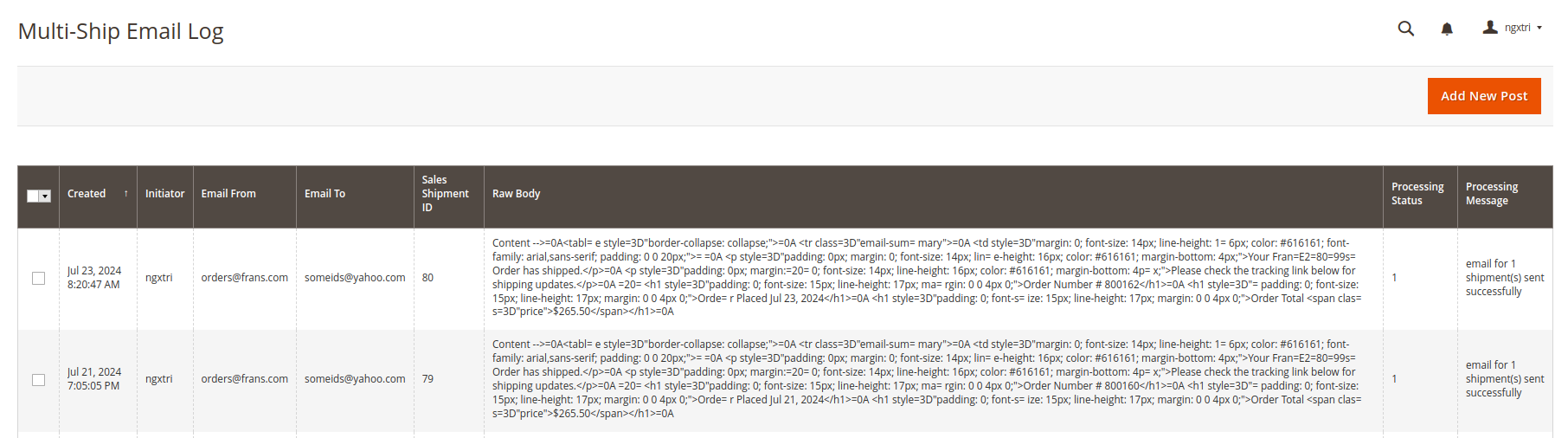
Search for the email sent to confirm that the shipment email was sent successfully.
Notice that Step 3 can also be executed programmatically via the MS partial invoice cron.
Stripe configs
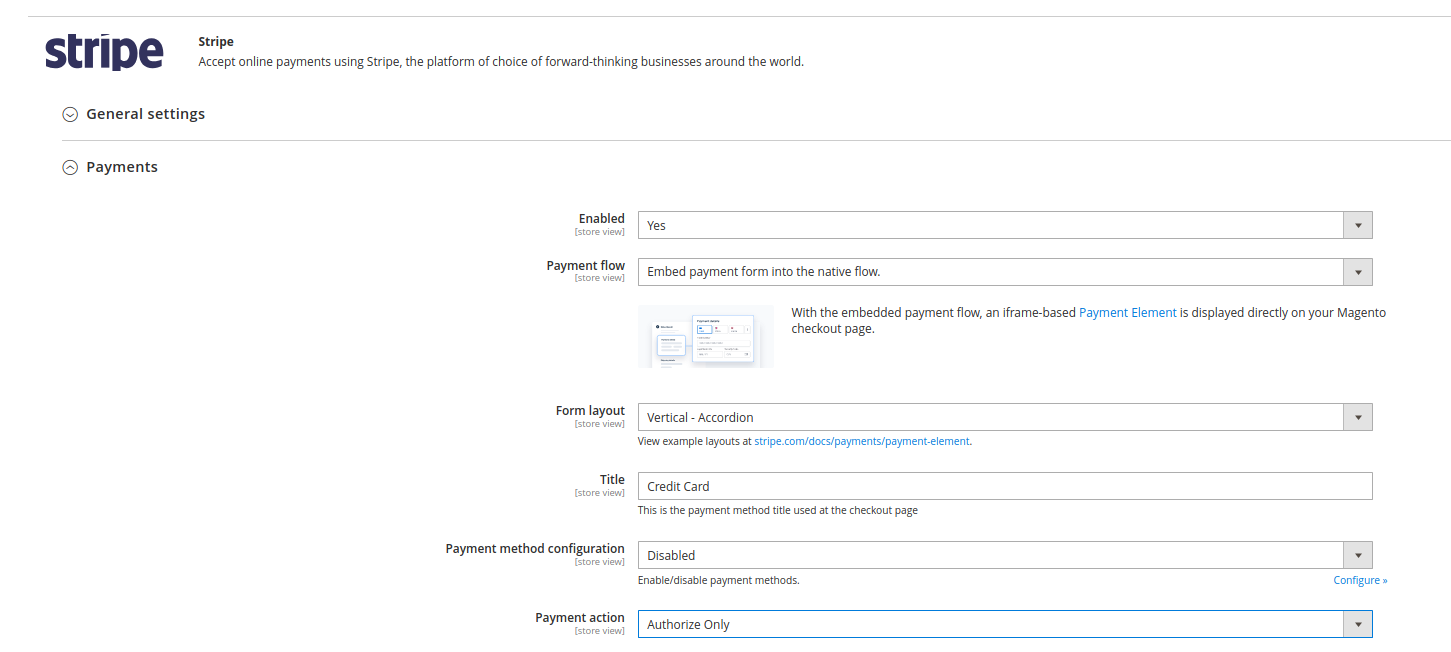
1/ Frans uses Stripe in Pre-auth mode. Make sure your localhost environment also uses Pre-auth mode. In config, change `Payment action` to `Authorize Only`:
2/ To debug local stripe connect (local webhook):
Install Stripe CLI
In command line, enter `stripe listen --forward-to http://sfran/stripe/webhooks`
Stripe cli will inform the webhook secret, such as:
```
> Ready! You are using Stripe API Version [2016-02-23]. Your webhook signing secret is whsec_123456 (^C to quit)
```
Copy that secret into table stripe_webhooks, column secret. Make sure that table only has 1 row; to avoid confusion.
Future Ship Invoicing
There's a cron job that automatically invoices future orders:
group id="futureship">
    <job instance="Frans\MultiShip\Cron\InvoiceFutureShips" method="execute" name="future_ship_capture_cron">
Bug with Stripe configs `Save customer payment method`
04/04/2025:
There is a bug with Stripe config; specifically `Save Customer Payment Method`
Look at this setting:
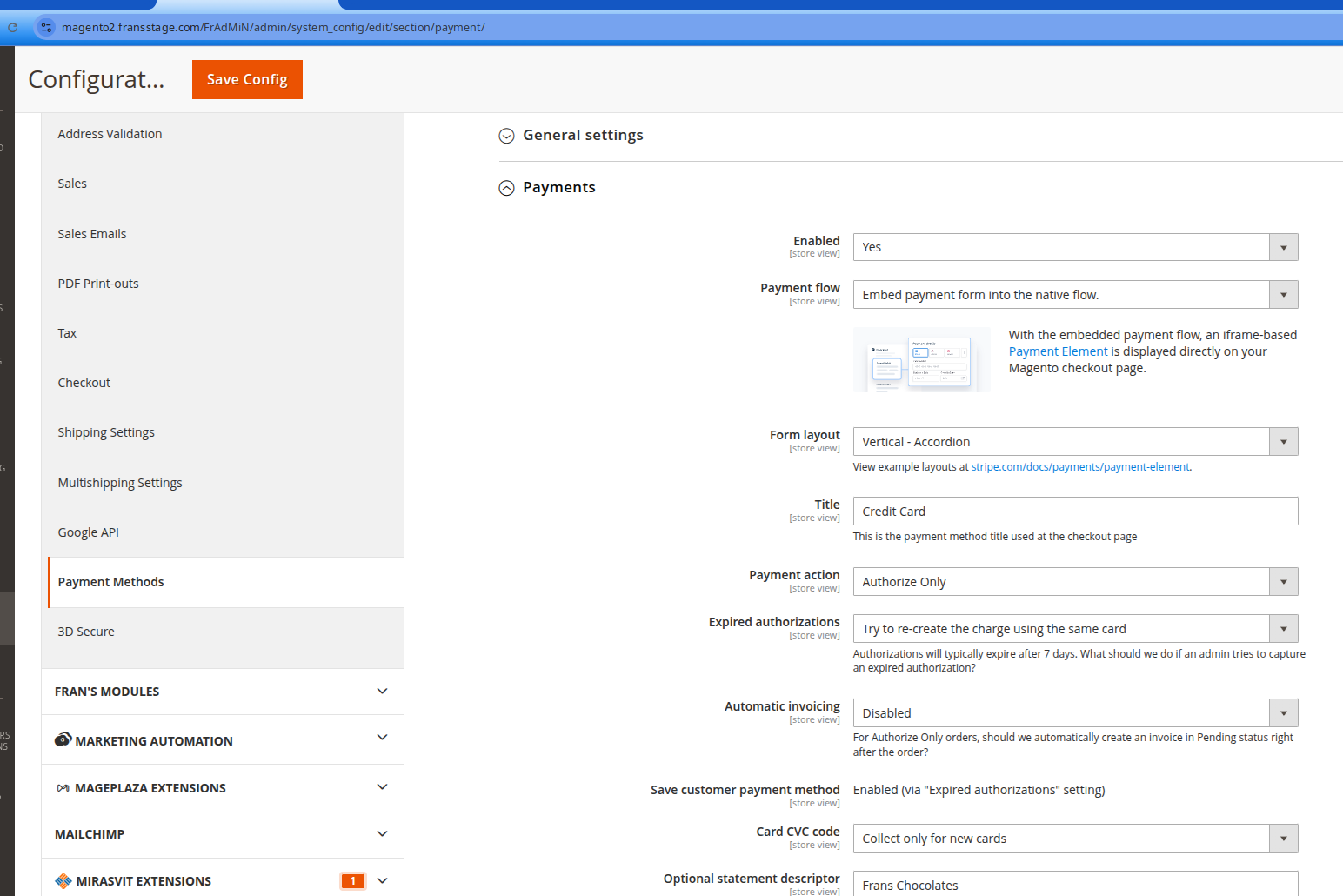
It has `Expired Authorizations` = `Try to re-create the charge using the same card`
and `Save customer payment method` = `Enabled via "Expired authorizations" setting`
Even though it says `Save customer payment method` = Enabled; behind the scenes it's actually disabled. If you log in as a front-end customer, the link `Saved Payment Methods` is not shown.
To fix this bug; we need to make sure `Save customer payment method` flag is Enabled.
1/ First, switch `Expired authorization` to `Warn admin and don't capture` and click Save. This helps enable the drop-down for `Save customer payment method`:
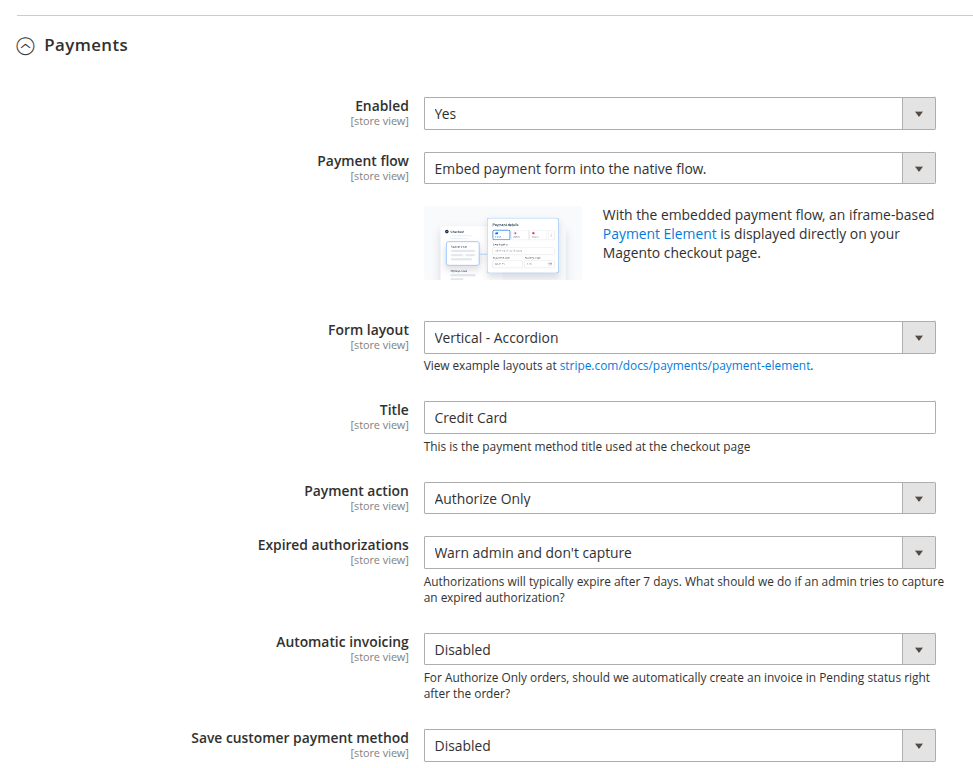
2/ Notice that `Save customer payment method` flag is `Disabled`; which caused the bug we saw earlier. Switch it to `Enabled` and click Save.
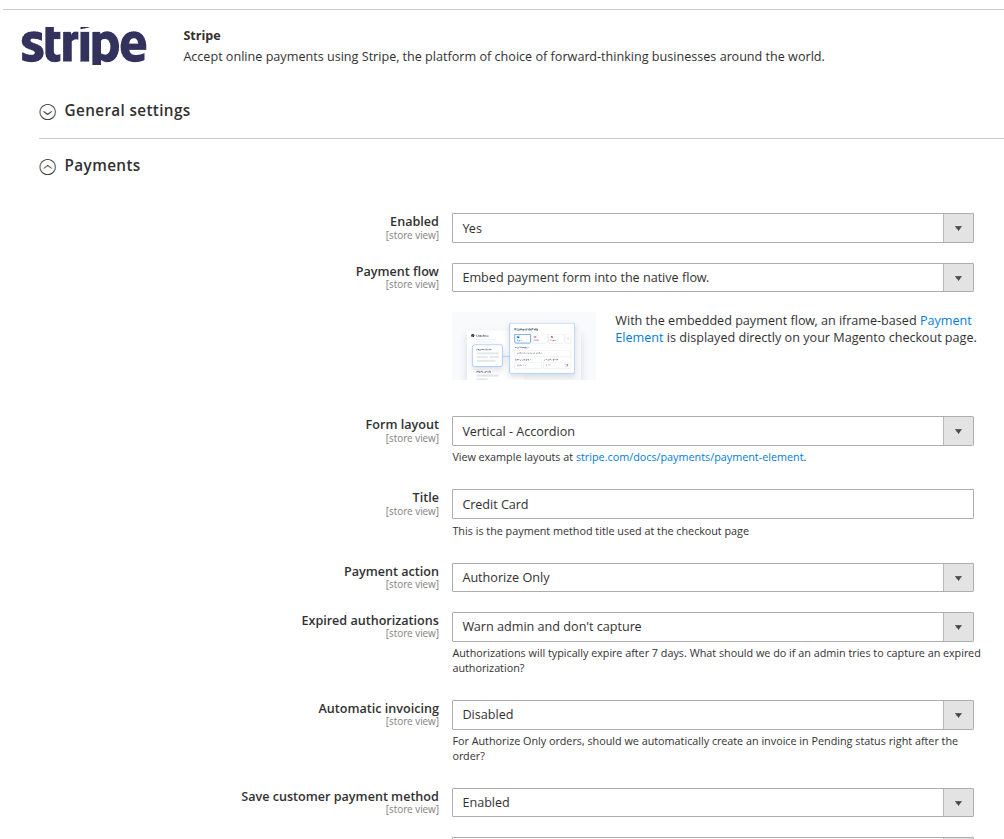
3/ Now that the flag `Save customer payment method` flag is Enabled; it's ok to switch back `Expired authorizations` to `Try to re-create the charge using the same card`; and click Save.
Behind the scenes, the flag `Save customer payment method` flag was switched to Enabled.
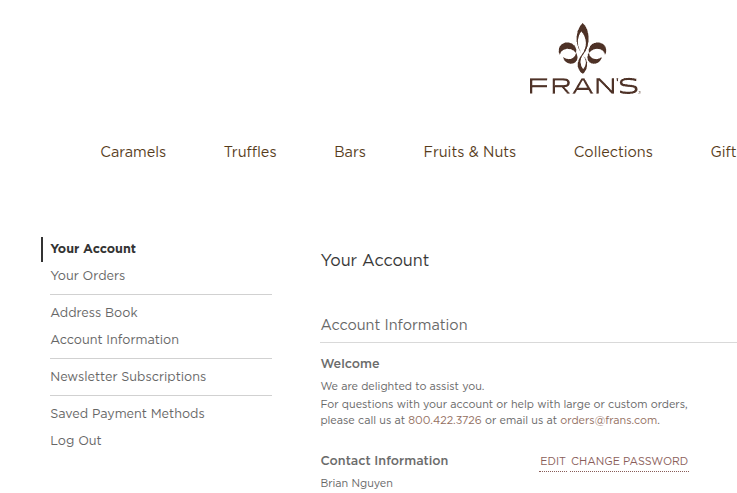
Verify by going to front-end customer dashboard, the button `Save Payment Methods` is now shown:
Use Magento Out-Of-Box tax
OOB tax setup for testing:
Magento 2 has useful Out-of-box (OOB) product tax and shipping tax (ship tax) features. This guide shows how to set them up.
Remember to disable third-party tax modules, such as Avatax
Step 1: Stores > Tax Zones and Rates : setup a tax zone e.g. CA or WA, wildcard / * for zip, tax rate e.g. 8.25%
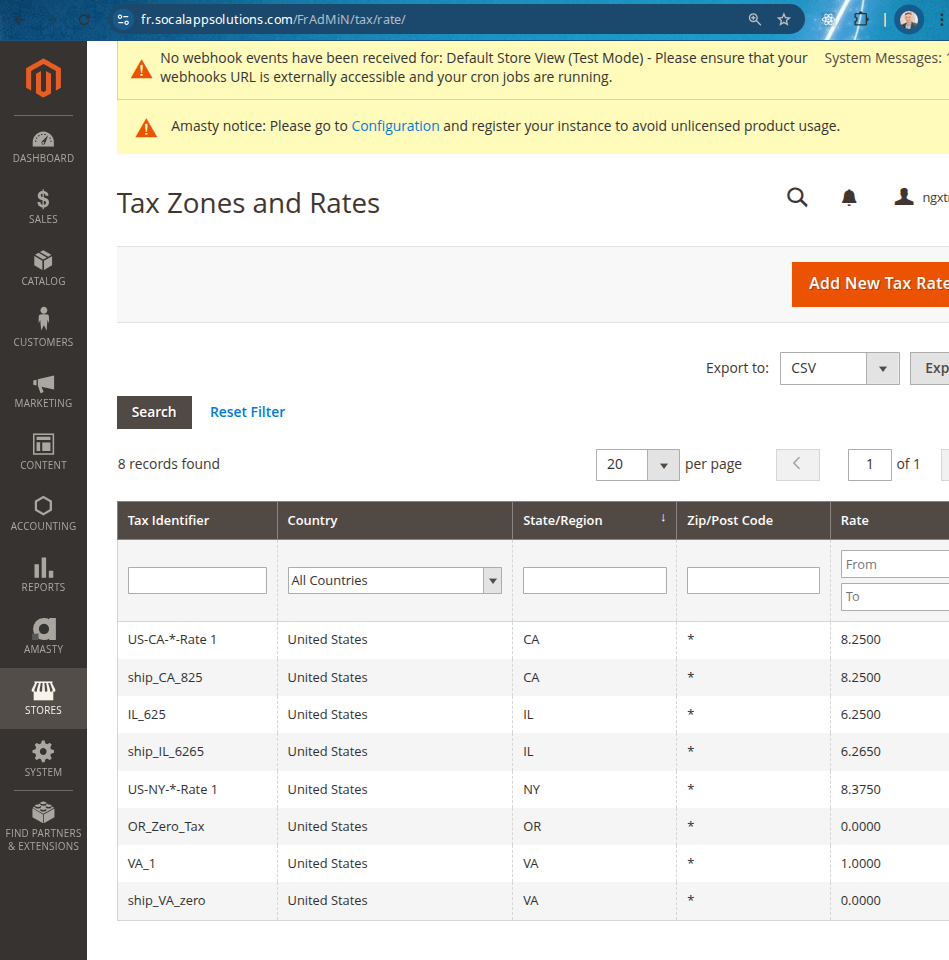
Notice naming conventions, product tax is `IL_625`, ship tax is `ship_IL_6265`
Step 2: Add two tax rules, one for Product Tax and one for Ship Tax:
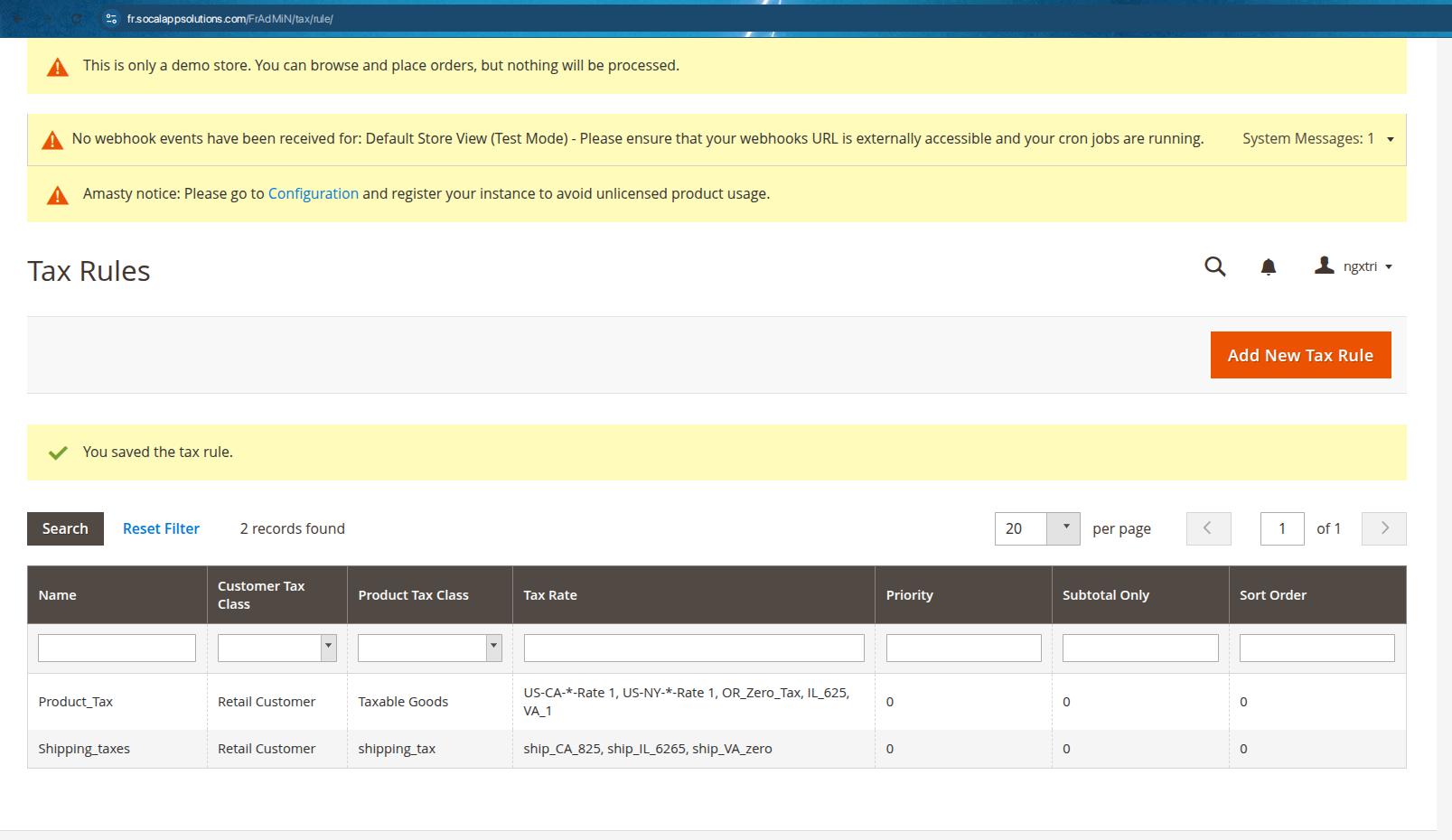
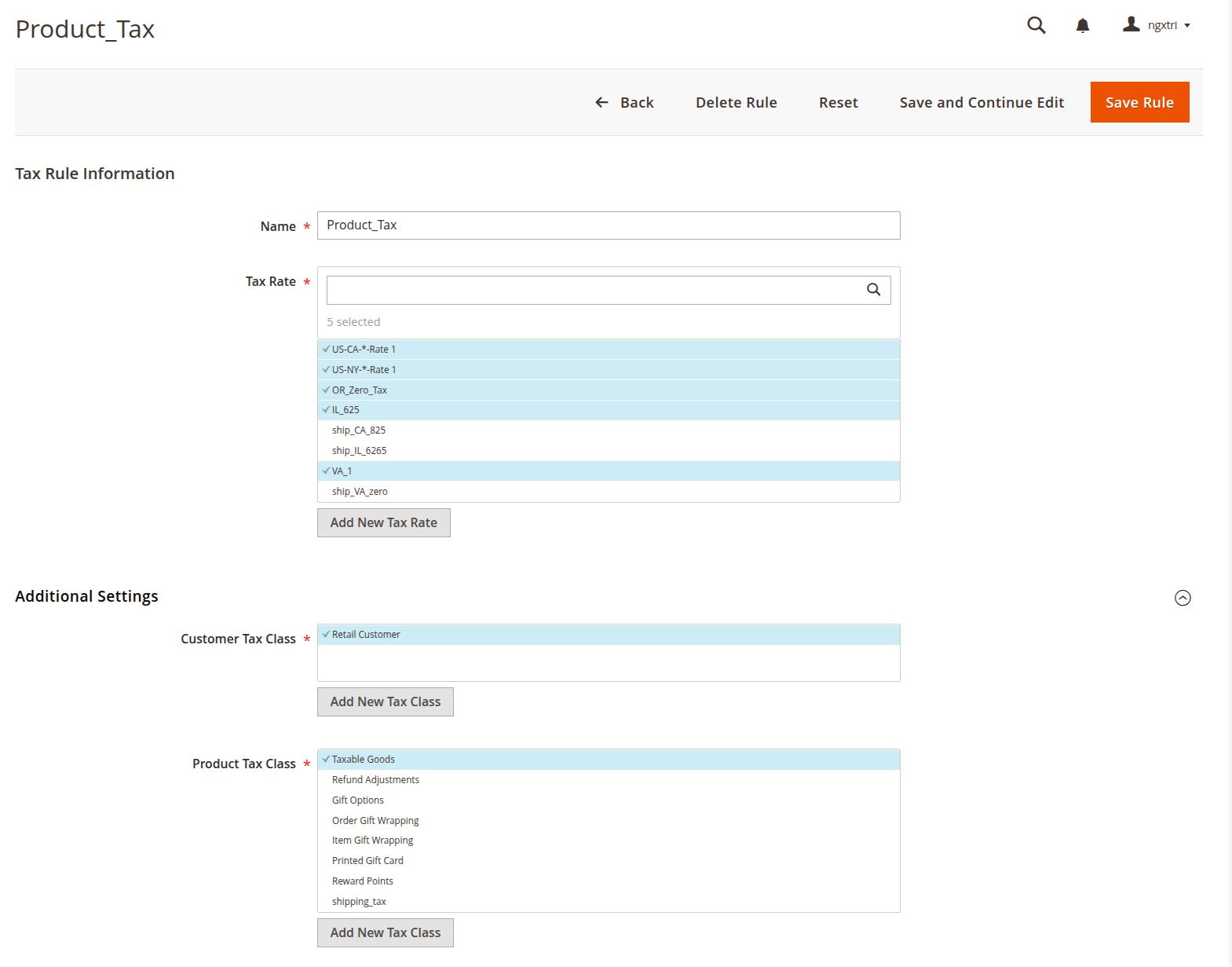
Step 2a: Rule one: Product Taxes:
Step 2b: Rule two: Shipping taxes
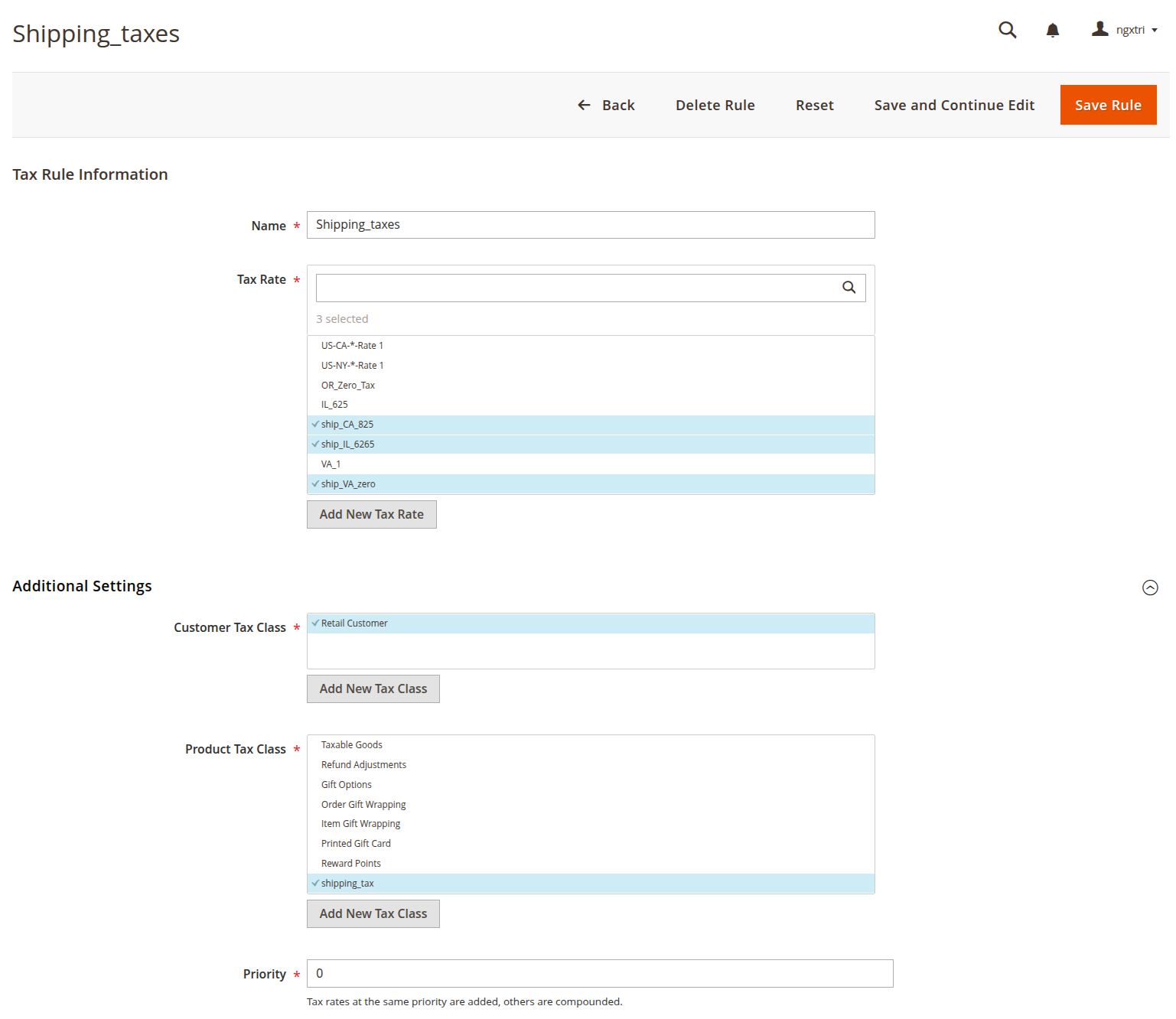
Notice, in Shipping_Taxes rule, in the ProductTaxClass, add a new class and name it `shipping_tax`
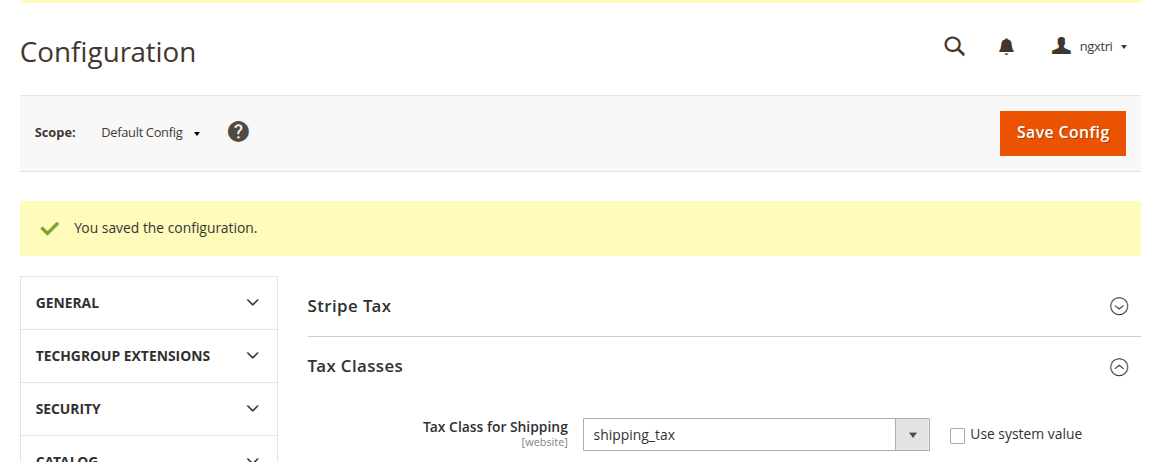
Step 3: Configure tax classes and rules
3a: Configure Ship Tax class as the `shipping_tax` class we created above
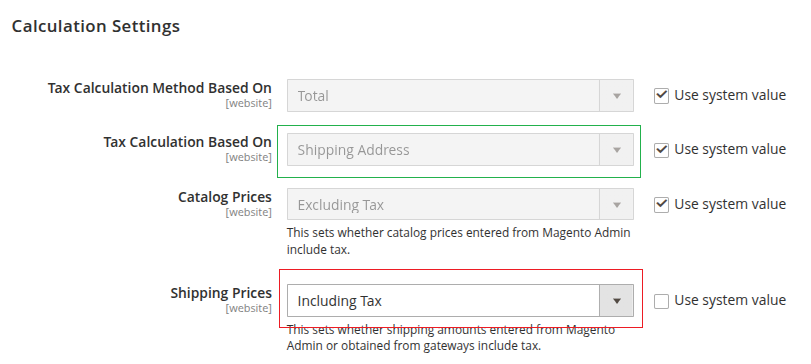
3b: Configure Shipping Tax Price Calculation as `Including Tax`:
That's it.