
Quote payment link
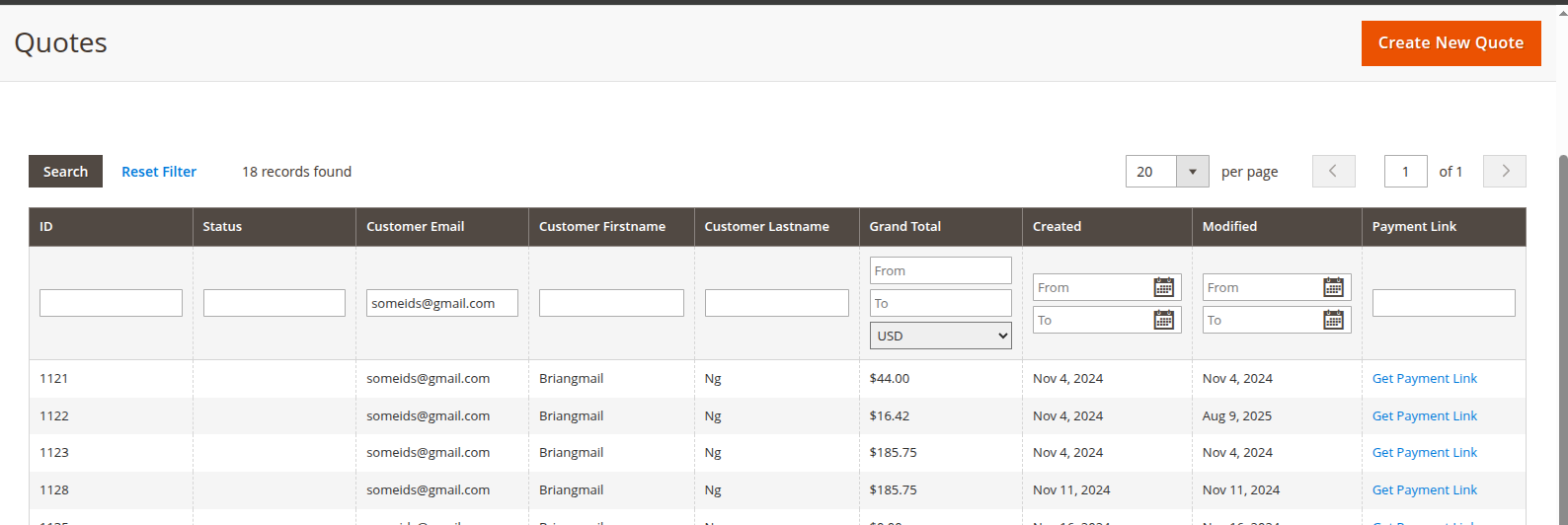
Step 1: In the backend, navigate to Sales > Quotes. Open the desired quote and click Get Payment Link.
- Quote number, customer name/email, creation date, and grand total
- A full breakdown of order items, subtotal, discount, shipping, tax, and grand total
- The quote type badge (Multiship or Single Ship)
Step 2: Click the button `Copy Link`
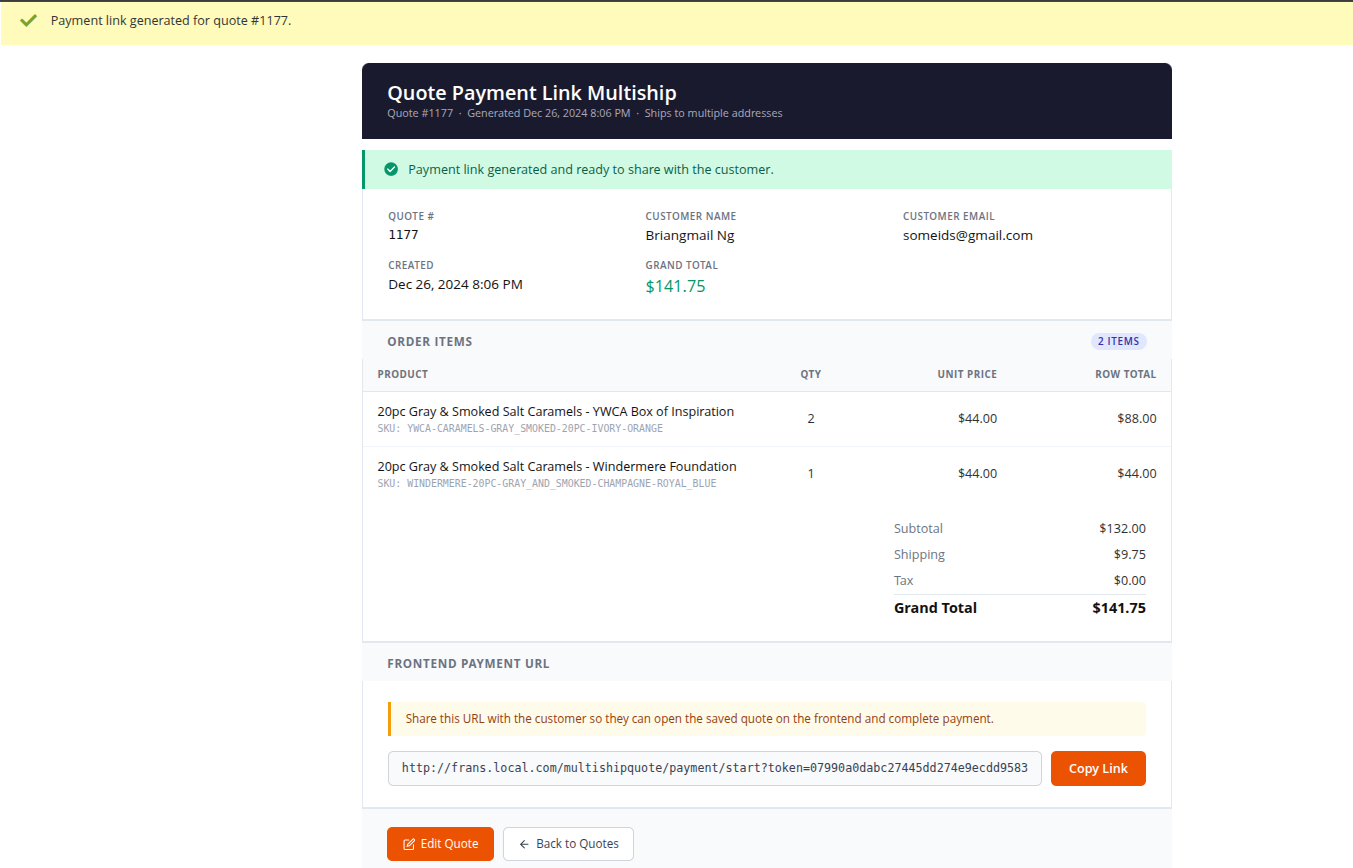
You can also click Edit Quote to make changes to the quote before sharing, or Back to Quotes to return to the quotes list.
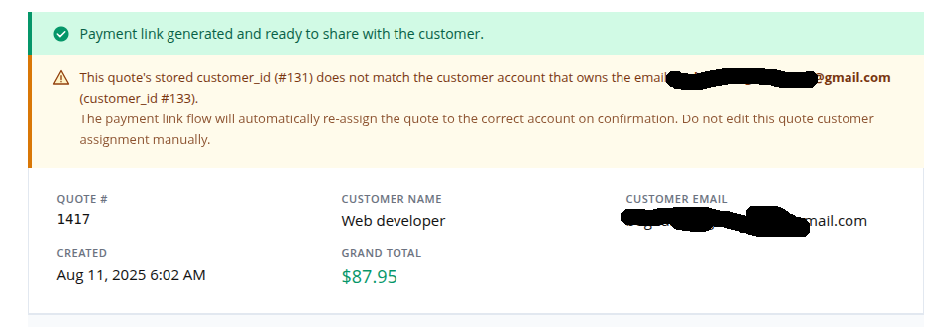
▎ Note: If the quote's stored customer does not match the email on the account, a warning banner is shown. The system will automatically re-assign the quote to the correct customer when they confirm do not manually edit the customer assignment.
Step 3: Send the link to the customer.
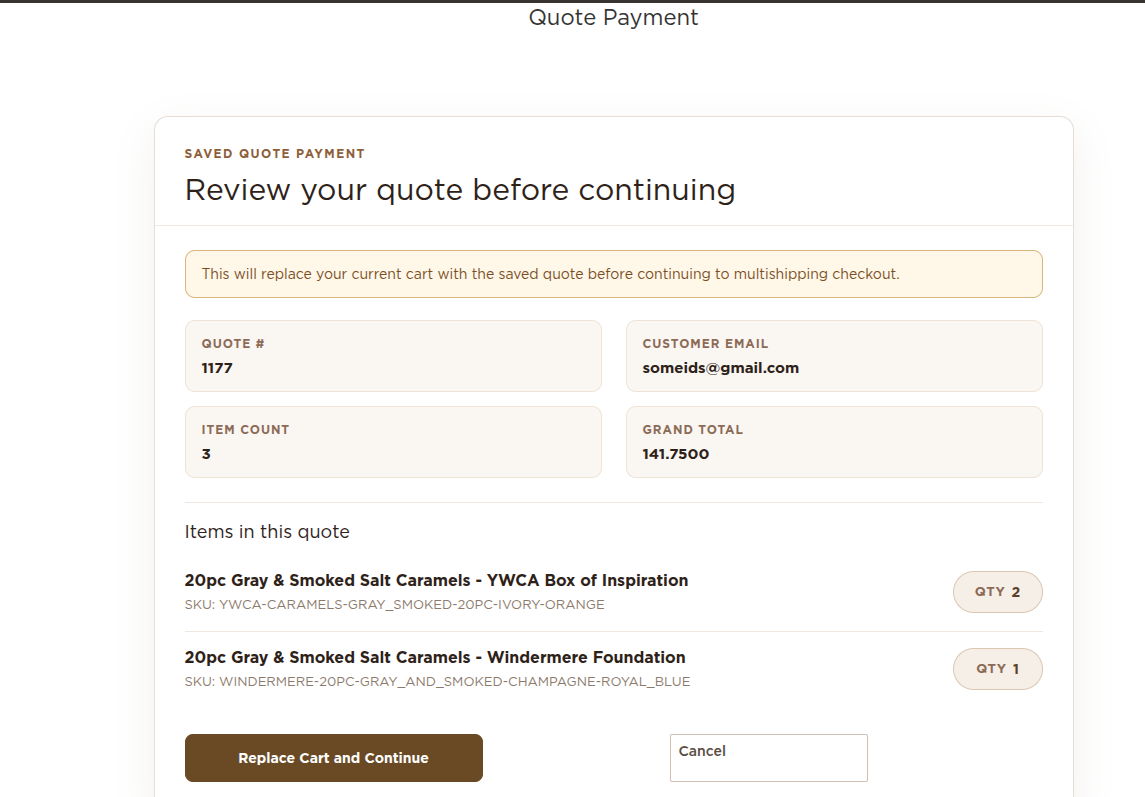
- When the customer opens the link, they are shown the quote review page.
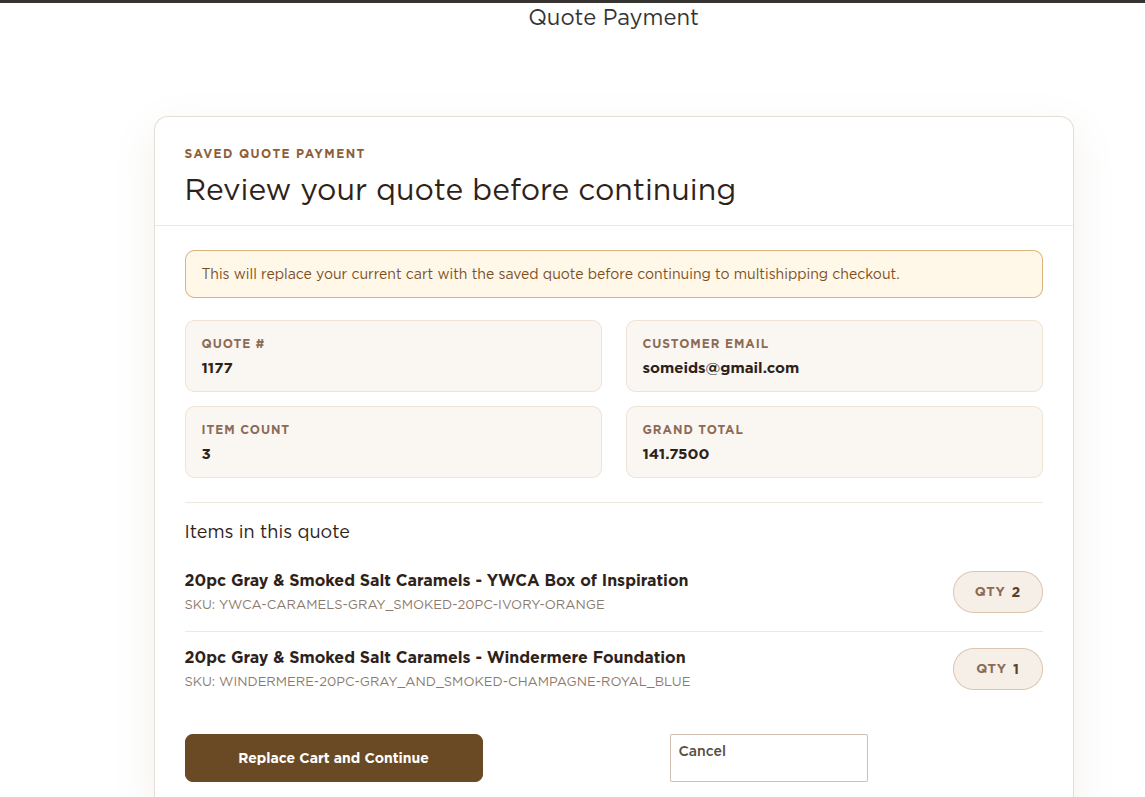
- If the customer is not logged in, they are redirected to the login page first, then automatically returned to the payment flow after sign-in.
- If the customer is logged in, they are taken directly into the checkout flow.
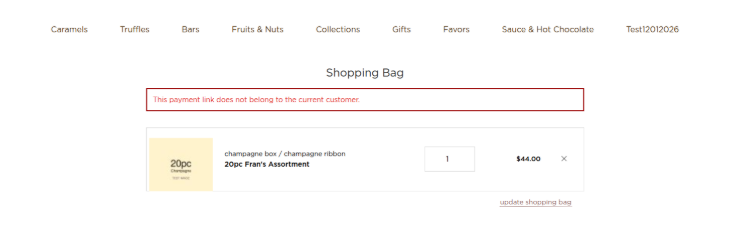
- The link validates that the customer's account email matches the quote email. If it does not match, access is denied.
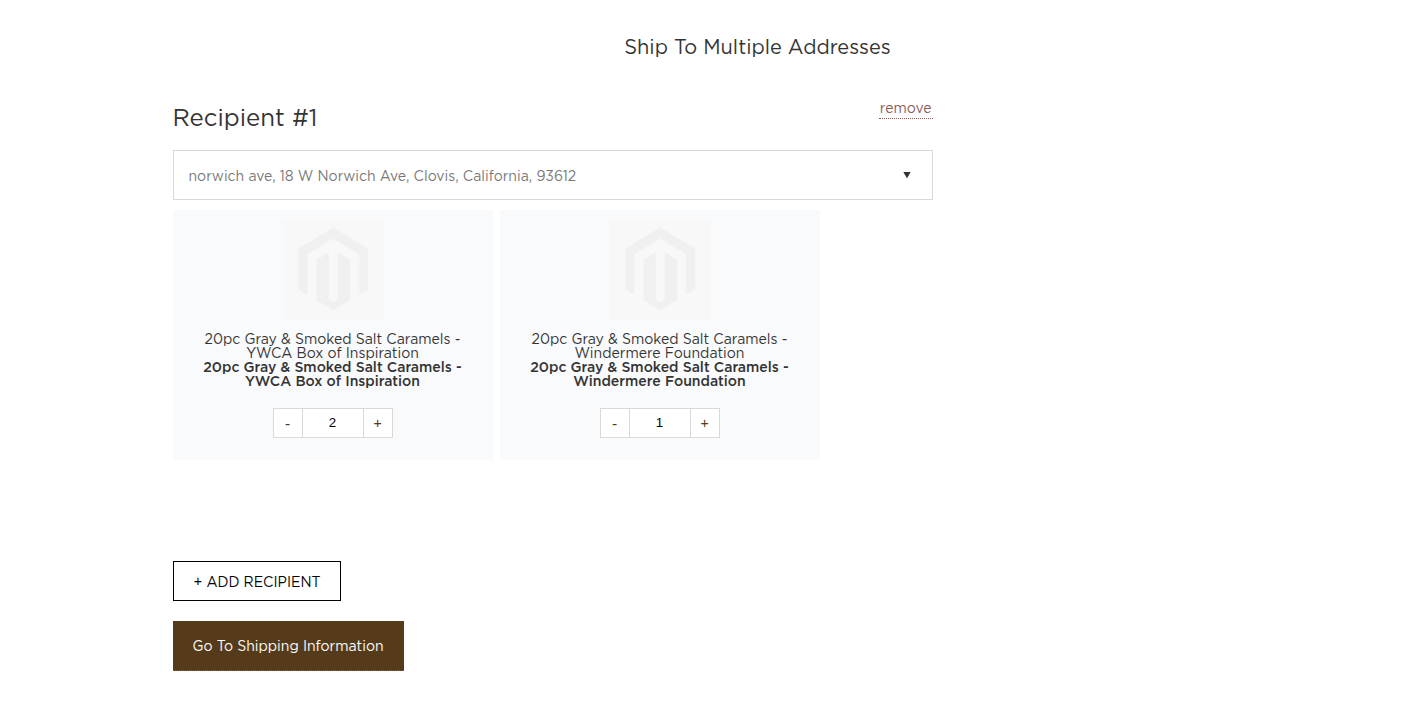
Step 4: (Customer — Multiship quotes): The customer is taken to the Multiship Addresses step where they can review or adjust recipient assignments, then proceed through shipping and payment to place the order.
- (Customer — Single-ship quotes): The customer is taken directly to the standard Checkout page to complete payment.
▎ Notes:
The payment link is single-use — it is deactivated after the customer confirms and enters the checkout flow.
If the customer already has an active cart, it is automatically retired when the payment link quote is loaded.
The link does not expire based on time, but the underlying quote must still be active.
Overview of the feature functionality :
- The link is tied to the saved quote and is intended for the quote owner.
- If a different customer opens the link, access is blocked.
- The current cart is not replaced until the customer confirms the action.
- The payment link expires after 7 days and cannot be used once it is expired.